1. Unbox & Hardware Check
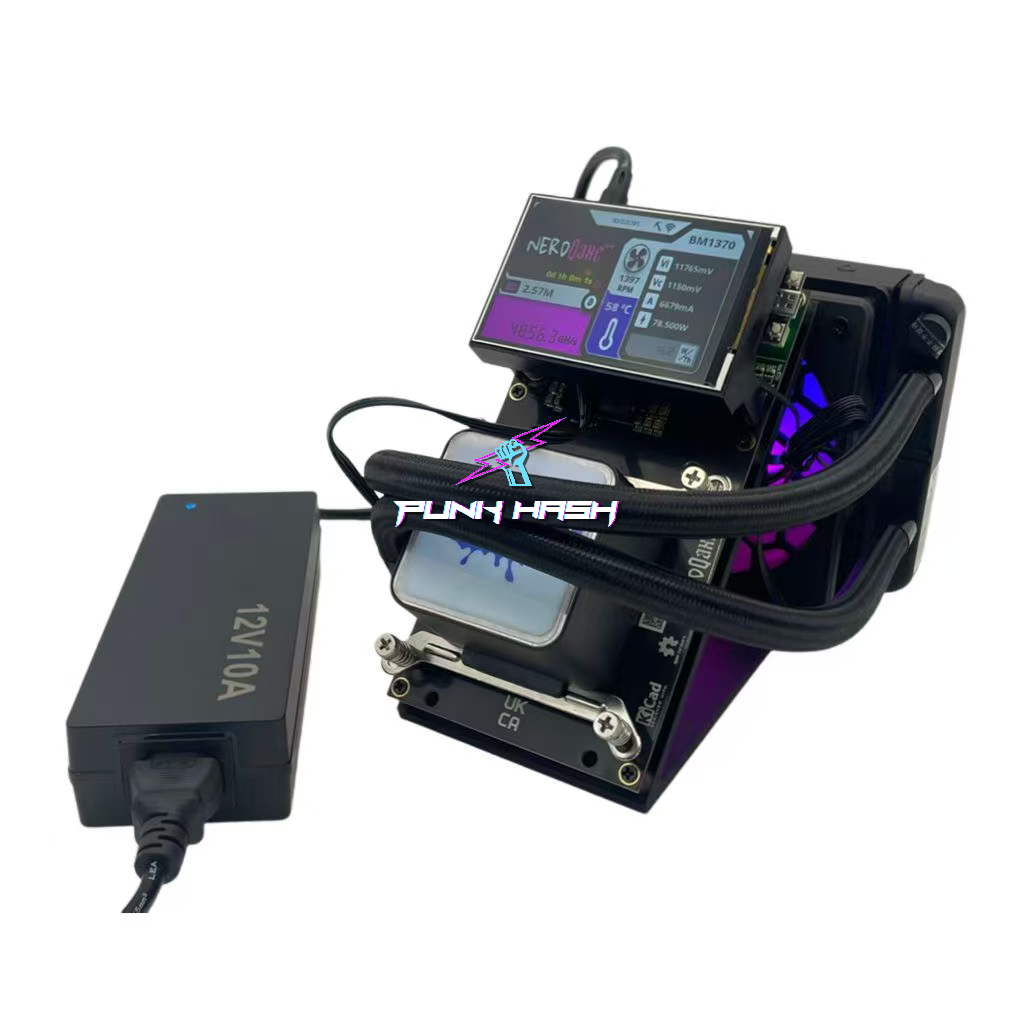
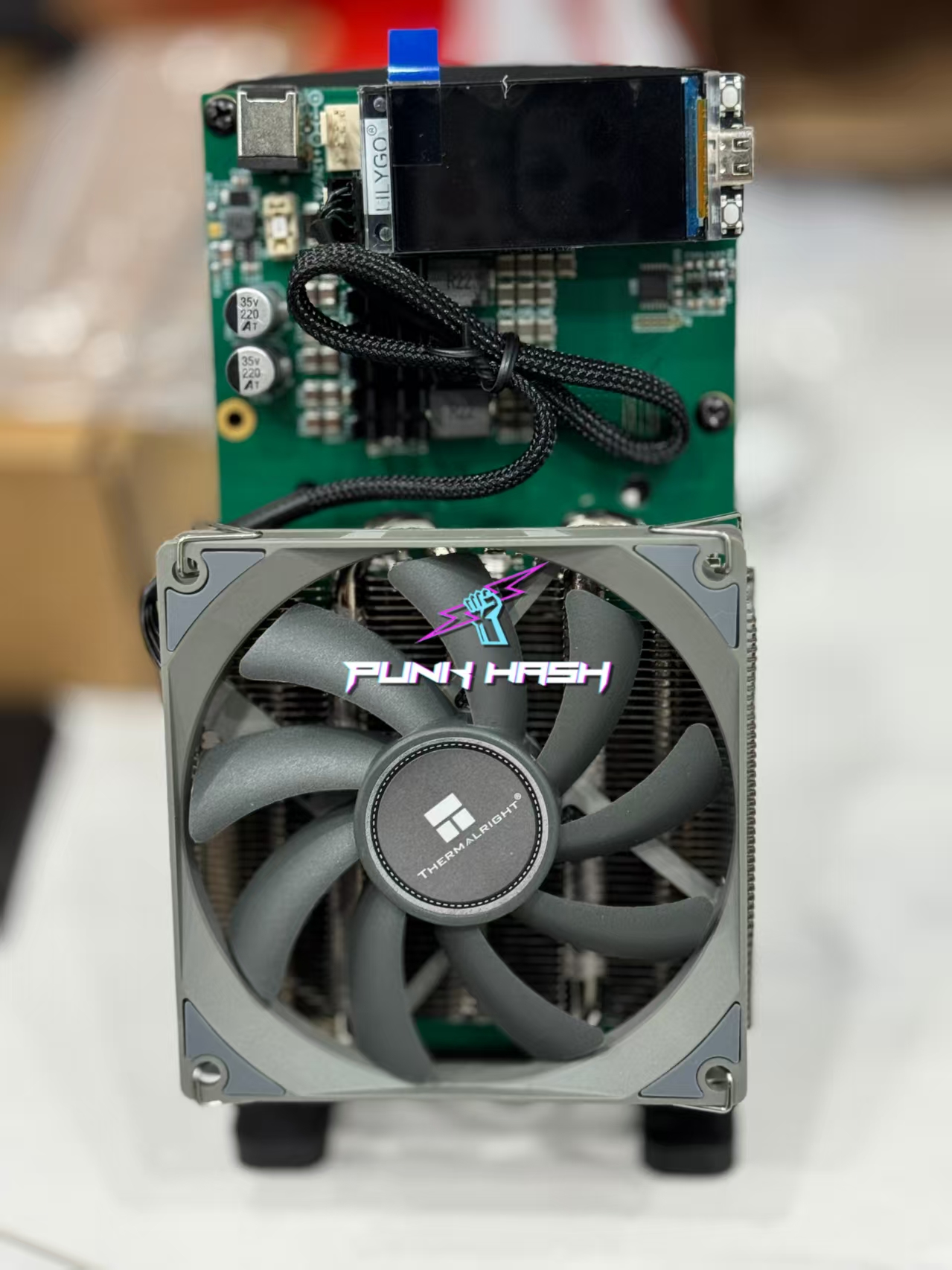
When your NerdQaxe arrives, unpack it and check that all components are present and undamaged. Typical box contents include the miner unit, a suitable DC power adapter, stand or mounting hardware.
Before plugging in, visually confirm:
-
The miner board shows no bent pins or damage.
-
Cooling fan is securely mounted.
-
The power adapter matches the required specs (for example 12 V/10 A or according to the version).
2. Power Up & Initial Boot
Connect the miner to the recommended power supply. Once powered, the miner will boot and on screen you’ll see logs and a Wi-Fi hotspot message. Example: “Connect to ssid: Nerdaxe_XXXX”.
Important: Use the correct barrel connector (not USB-C unless firmware updating) to avoid damage.
3. Connect to Wi-Fi Portal
On your phone or laptop:
-
Scan for the WiFi network named “Nerdaxe_XXXX”.
-
Connect, then open browser to the portal (often http://192.168.4.1) to start setup.
-
Enter your home 2.4GHz WiFi credentials (note: many units do not support 5GHz networks) and click Save.
4. Configure Mining Settings
Once connected, access the AxeOS dashboard via the device’s local IP or hostname.
Within Settings you’ll input:
-
Your WiFi SSID/password (if not done already)
-
Pool settings (for solo mining or configured pool)
-
Your Bitcoin wallet address in the Stratum User field
-
After saving, restart the miner so it joins your network.
5. Confirm Mining Operation
Check the display or dashboard for:
-
Real-time hashrate readings
-
Device temperature & fan RPM
-
Uptime & status logs
If the miner shows a stable hash value and “running” status, you’re mining!
6. Firmware & Optimization (Optional)
You can update firmware via the dashboard if a newer version is available. This may improve stability or features.
For advanced users: adjust ASIC clock/voltage settings for efficiency (note: risks apply).
7. Basic Troubleshooting
-
If miner fails to connect to WiFi: ensure router broadcasts 2.4GHz and password is correct.
-
If hash rate drops: verify firmware, ensure adequate cooling/ventilation.
-
If miner reboots or shows errors: check power stability and temperature.
Why NerdQaxe++?
-
It’s a home-friendly solo miner: compact, efficient, easier to manage than large industrial rigs.
-
WiFi & open-source friendly: simpler setup for hobbyists and early miners.
-
Good efficiency & quiet operation: less intrusive for desktop or home usage.
With just a correct power supply, WiFi credentials, mining pool/wallet info, your NerdQaxe++ can be set up in under 30 minutes. Once running, monitor your hash rate, keep the system cool, and enjoy your entry into home Bitcoin mining.
 订阅 PunkHash 频道

















 Block A Level 8, Sky Park One City, Jalan USJ 25/1B, 47650 Subang Jaya, Selangor,Malaysia
 +(60)116 999 5678

 arvin.cn.work@gmail.com